From sign-up to your first fact
Create your account, add your brand, read a few pages, and see the first facts Truthbased pulled from your site. About ten minutes.
What you will have at the end
A brand in Truthbased, a few of your pages read, and a list of facts taken from those pages. Each fact shows the exact sentence it came from. Nothing is public yet, and nothing has been sent to any AI about you. That comes in the next guides.
You do not need an AI key for this guide. Your first pages are read on our key.
Create your account
-
Go to truthbased.ai/signup. Use your work email, or sign up with Google.
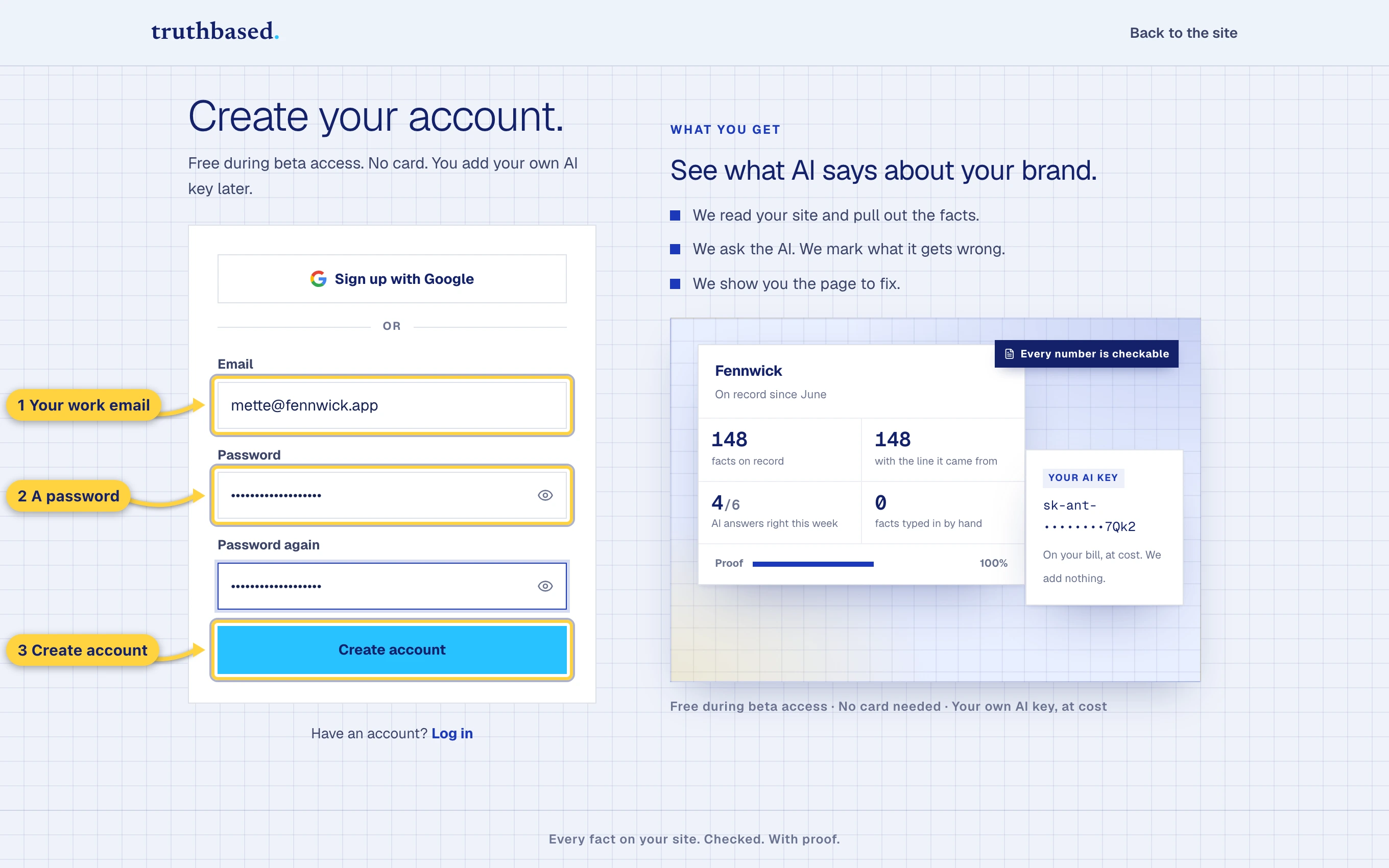
The sign-up form. Email, a password, and the Create account button. -
Check your inbox for the verification link and click it. Until you do, the free pages stay locked. You can keep going in the meantime.
Name your team
-
The first screen shows the plan you are on. Press Get started.
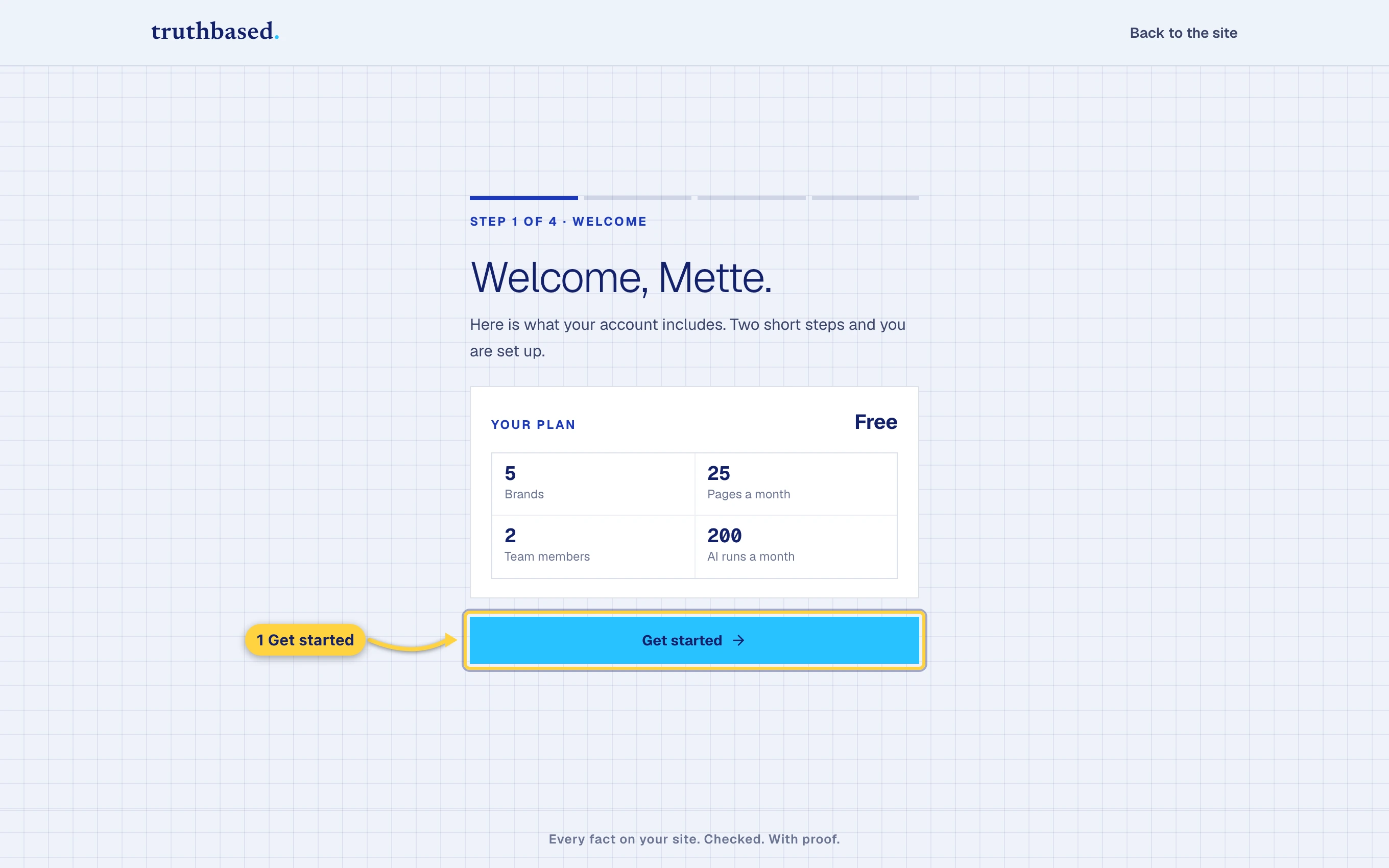
The welcome screen shows your plan. Press Get started. -
Give your team a name. A team is a workspace. You can invite colleagues later, and an agency can keep each client in its own workspace.
The link name is the short form that goes in your web address. Small letters and dashes only.
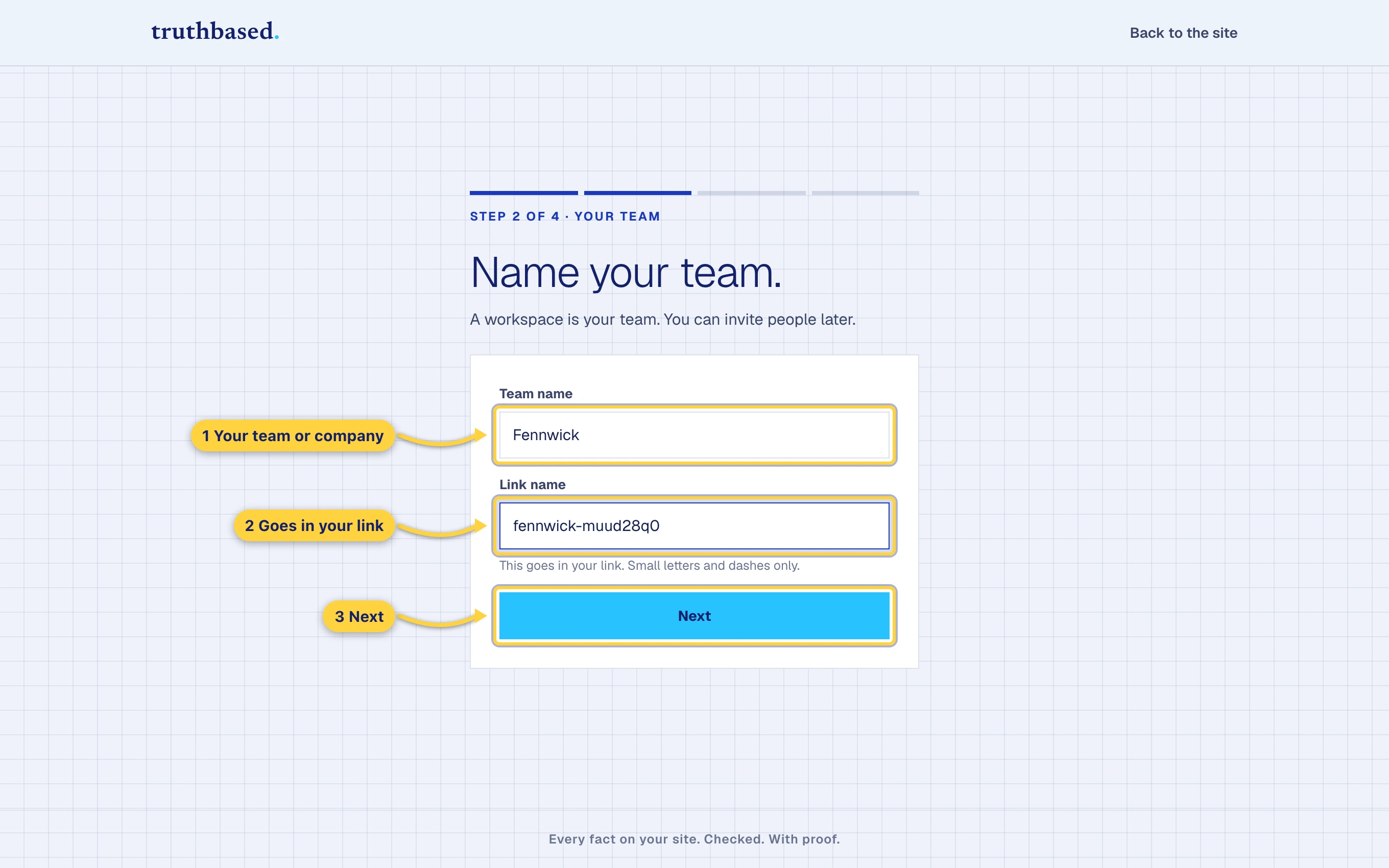
Team name and link name. Then Next.
Add your brand
-
One brand is one website. Type the brand name and the website address. You do not need
https://.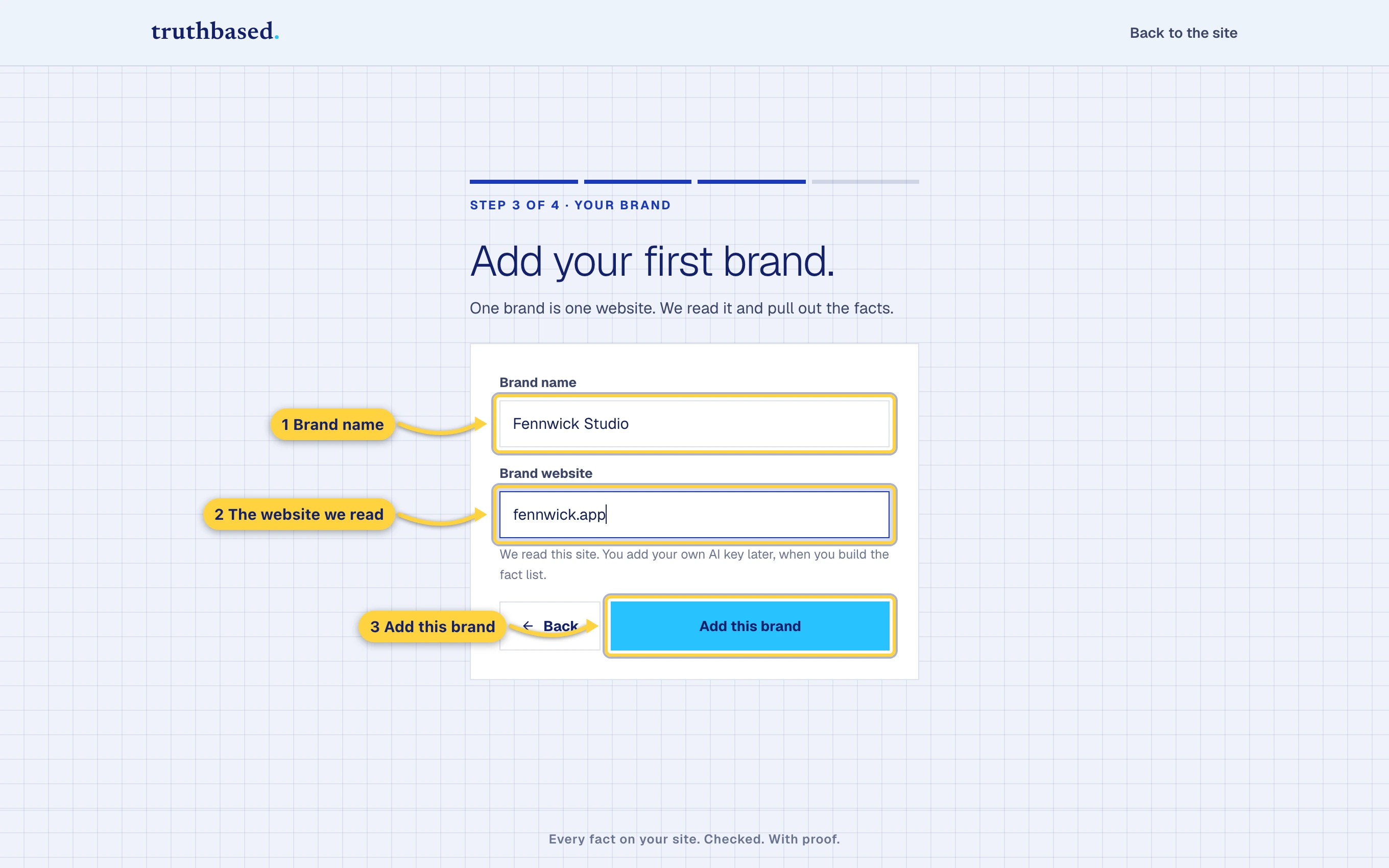
Brand name and brand website. Then Add this brand. -
The last screen offers a quick quiz: ten statements about your brand, some true, some not. It is a good way to see what Truthbased does, and it also reads your homepage and pricing page as your first sources. Try it, or press Skip.
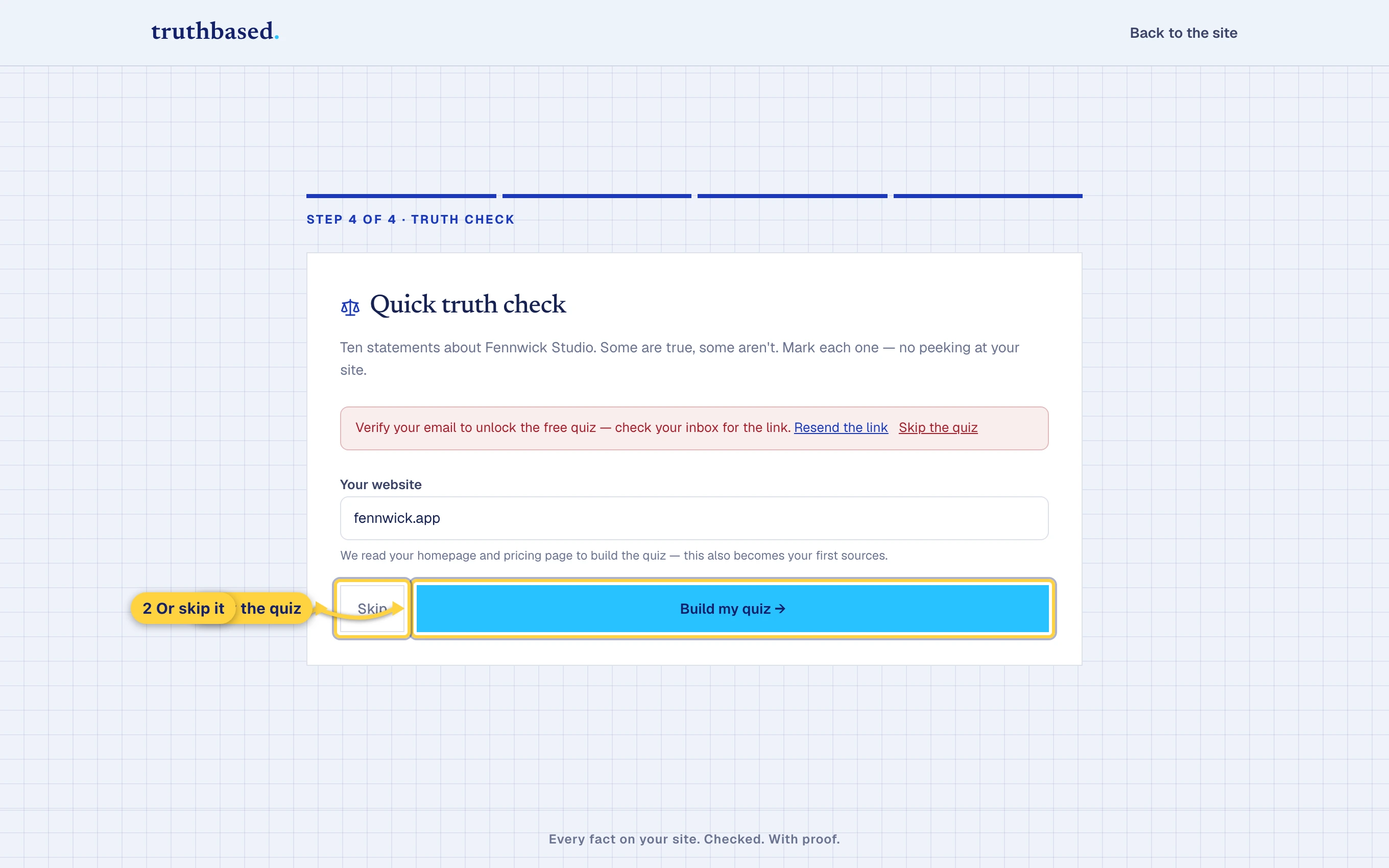
The quiz step. Build my quiz, or Skip.
Read your pages
You land on Sources. This is where pages go in.
-
Your website is already filled in. Choose how many pages to read. Fifteen is a good first run.
-
Press Crawl.
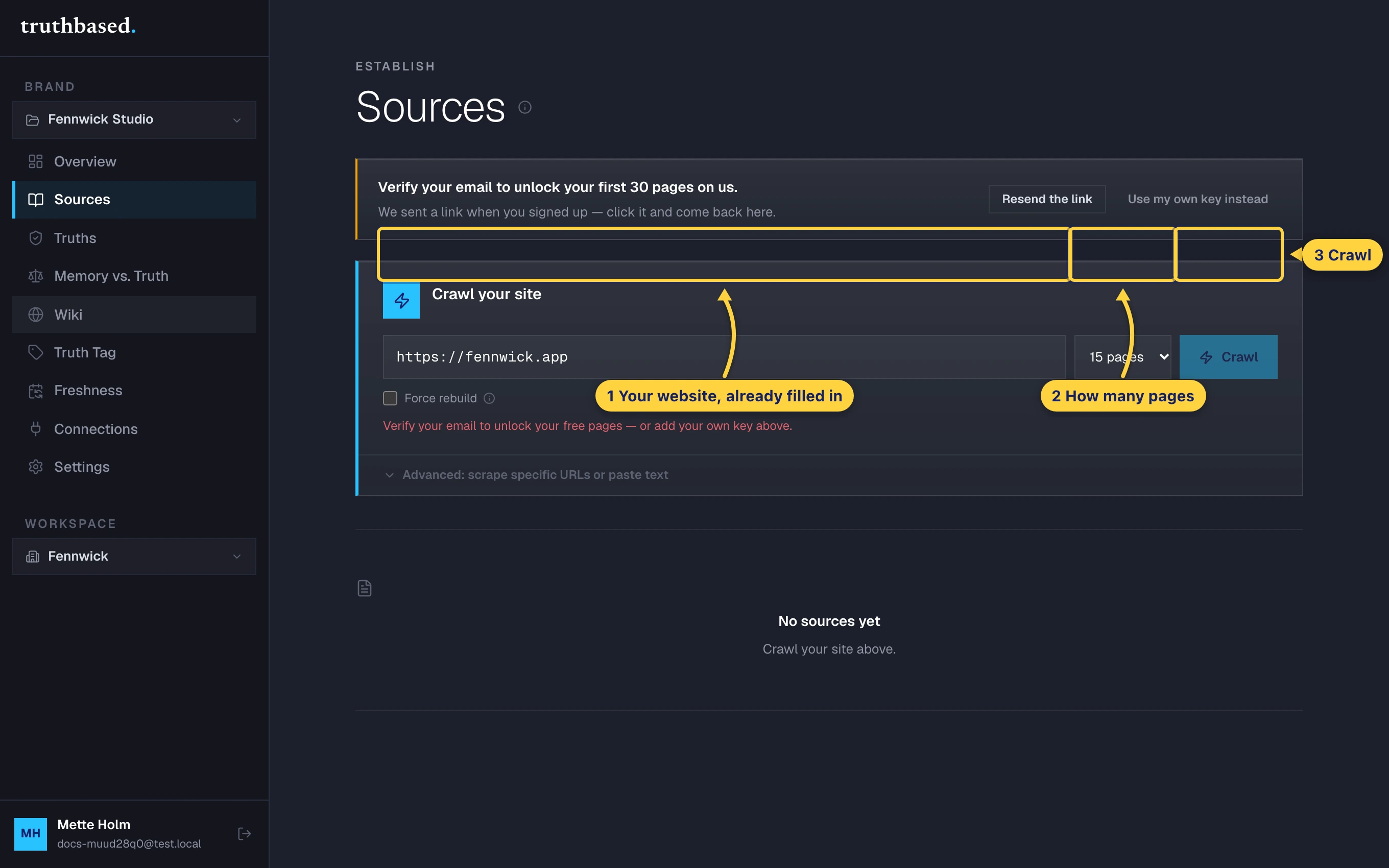
The Crawl your site box: your website, how many pages, and the Crawl button. -
Wait. The progress line says what is happening: fetching your sitemap, then reading and extracting page by page, then a final inspection pass. A fact counter ticks up as it goes. A first run of fifteen pages usually takes a few minutes. You will also get an email when it is done.
-
When it finishes, the box says how many pages were read and how many facts came out. Below it, every page you read gets a row in the ledger.
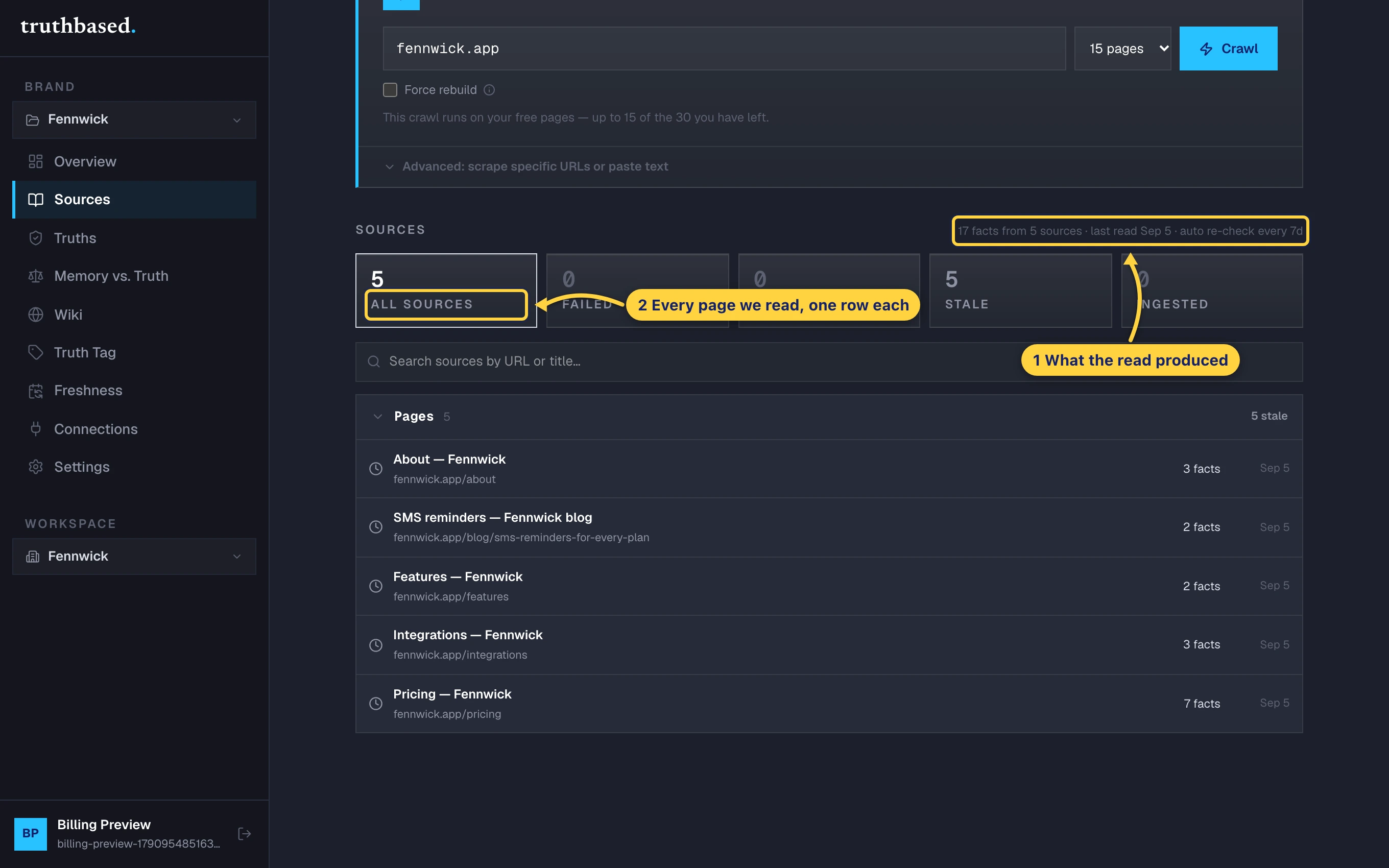
The sources ledger: how many facts came from how many pages, and one row per page.
See your first facts
-
Open Truths in the left menu.
-
New facts sit under Unverified. Each one shows the sentence it came from, in quotes, and the page it was on.
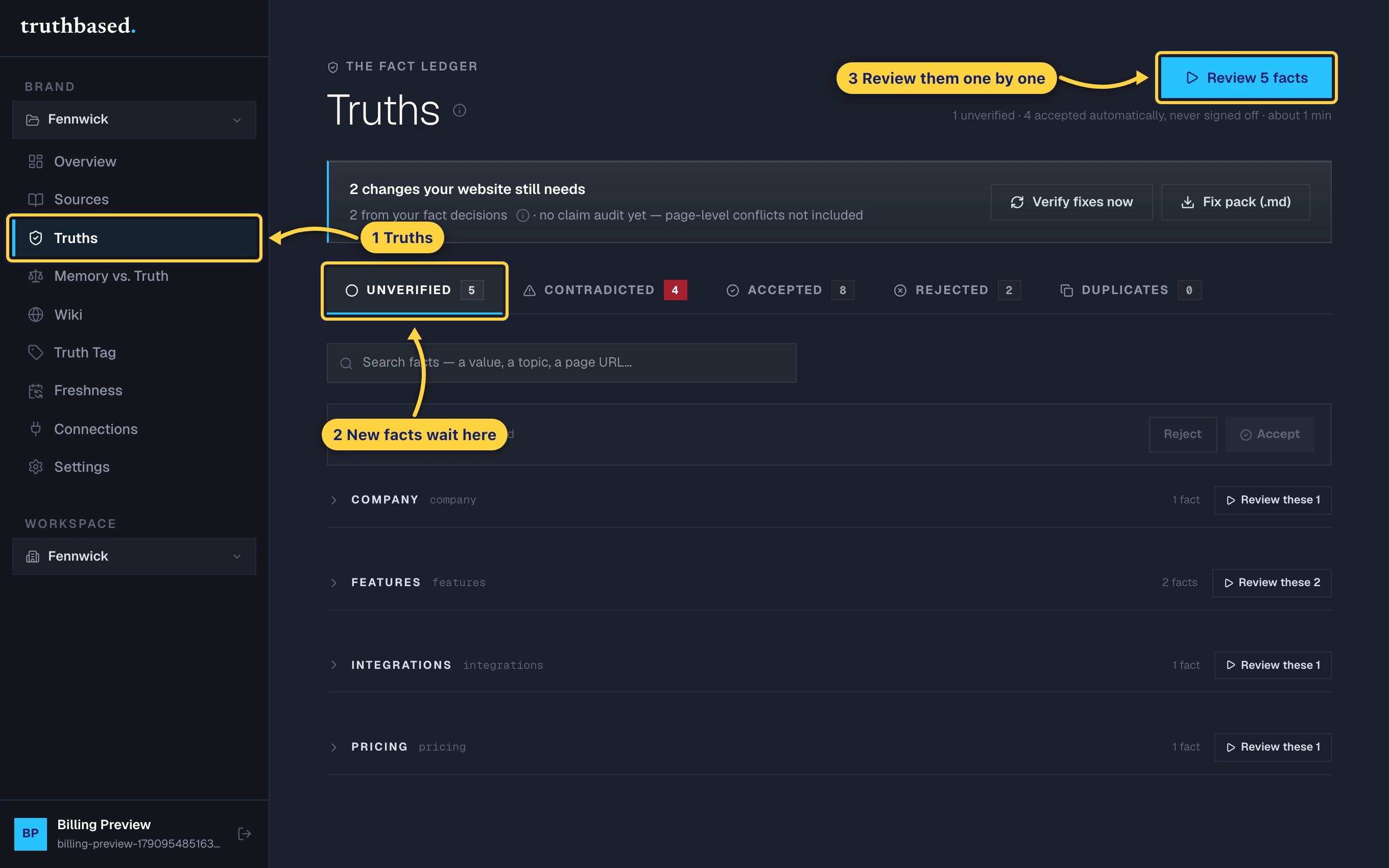
The Truths page. The Unverified tab holds new facts. The Review button walks through them.
That is the first fact. Nothing in this list is used anywhere until a person on your side signs it off, which is what the next guide covers.
What to do next
- Truths, and why you sign them off is the five-minute habit the whole product rests on.
- Bring your own AI key is needed before Truthbased can check what AI says about you, and before you can read more pages than the free ones.
- Did the read return fewer pages than you expected? Sites without a sitemap, or with pages behind a login, read fewer pages. Add specific addresses with the advanced tools at the bottom of Sources.