Teams and agencies
Workspaces, members and roles, running several brands, and how seats and billing work when you look after clients.
The three nouns
- A brand is one website and its facts. Everything in the left menu, from Sources to Connections, belongs to one brand.
- A workspace holds brands and the people who work on them. A company usually has one. An agency has one per client.
- An account is you. It owns the plan, the AI keys you add under Account, and every workspace you create. Billing happens here, once, whatever the number of workspaces.
Switch brand or workspace from the two pickers at the top and bottom of the left menu.
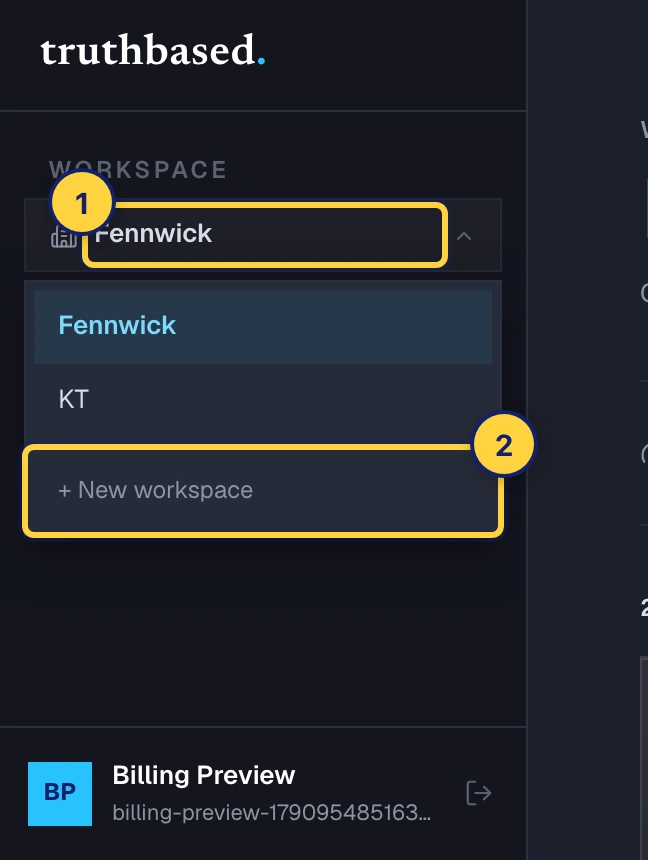
Add a workspace
-
Open the workspace picker at the bottom of the left menu and choose New workspace.
-
Name it. For a client, use the client's name. The slug is the short form that goes in web addresses.
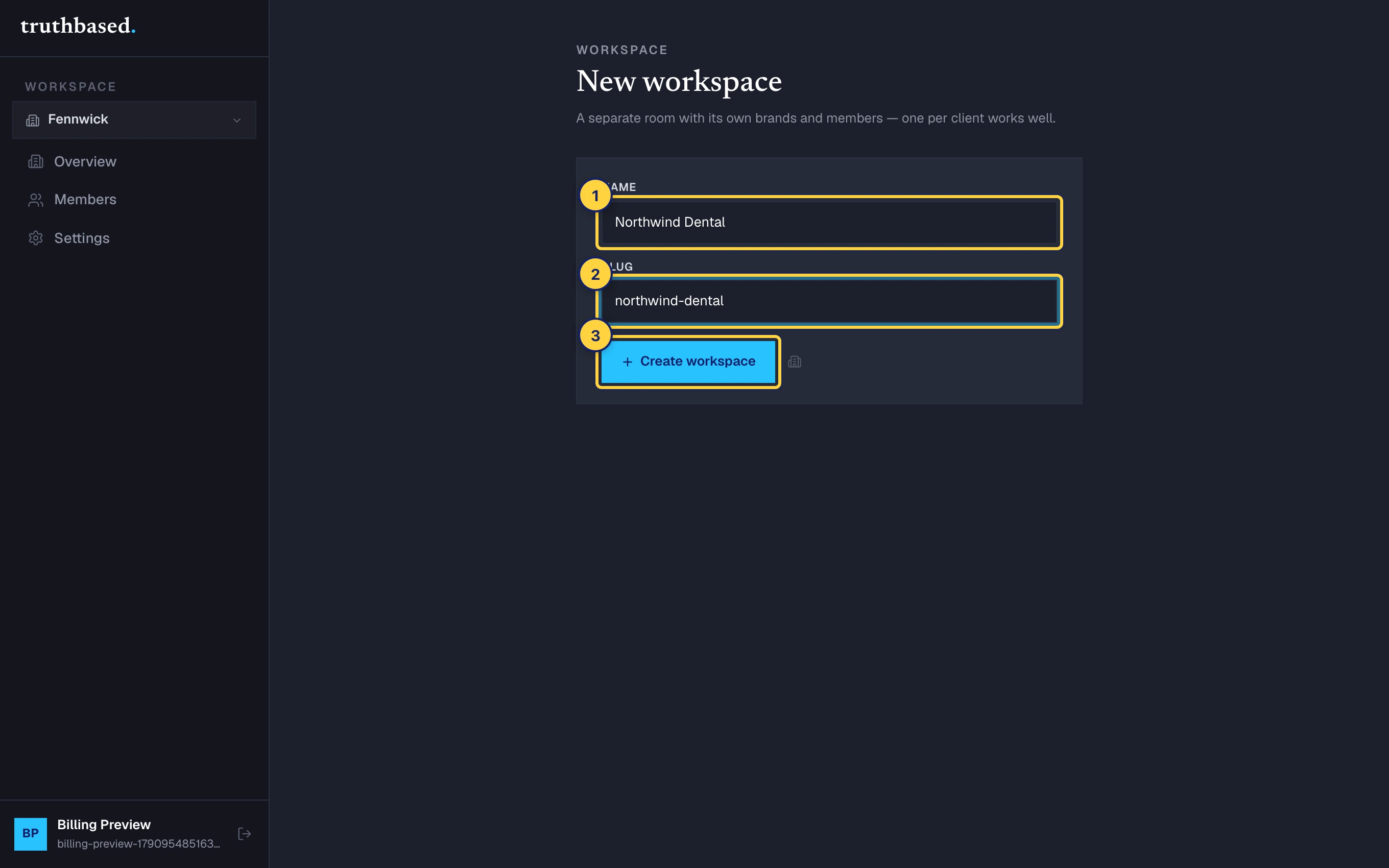
New workspace. ① Name. ② Slug. ③ Create workspace. -
Press Create workspace. You land in it with no brands yet. Add the client's site as the first brand.
Add people
-
In the workspace menu, open Members.
-
Type a colleague's email, pick a role, and press Add member. If they already have a Truthbased account they are in at once. If not, you are offered to send them an invitation, and they join with that role when they sign up.
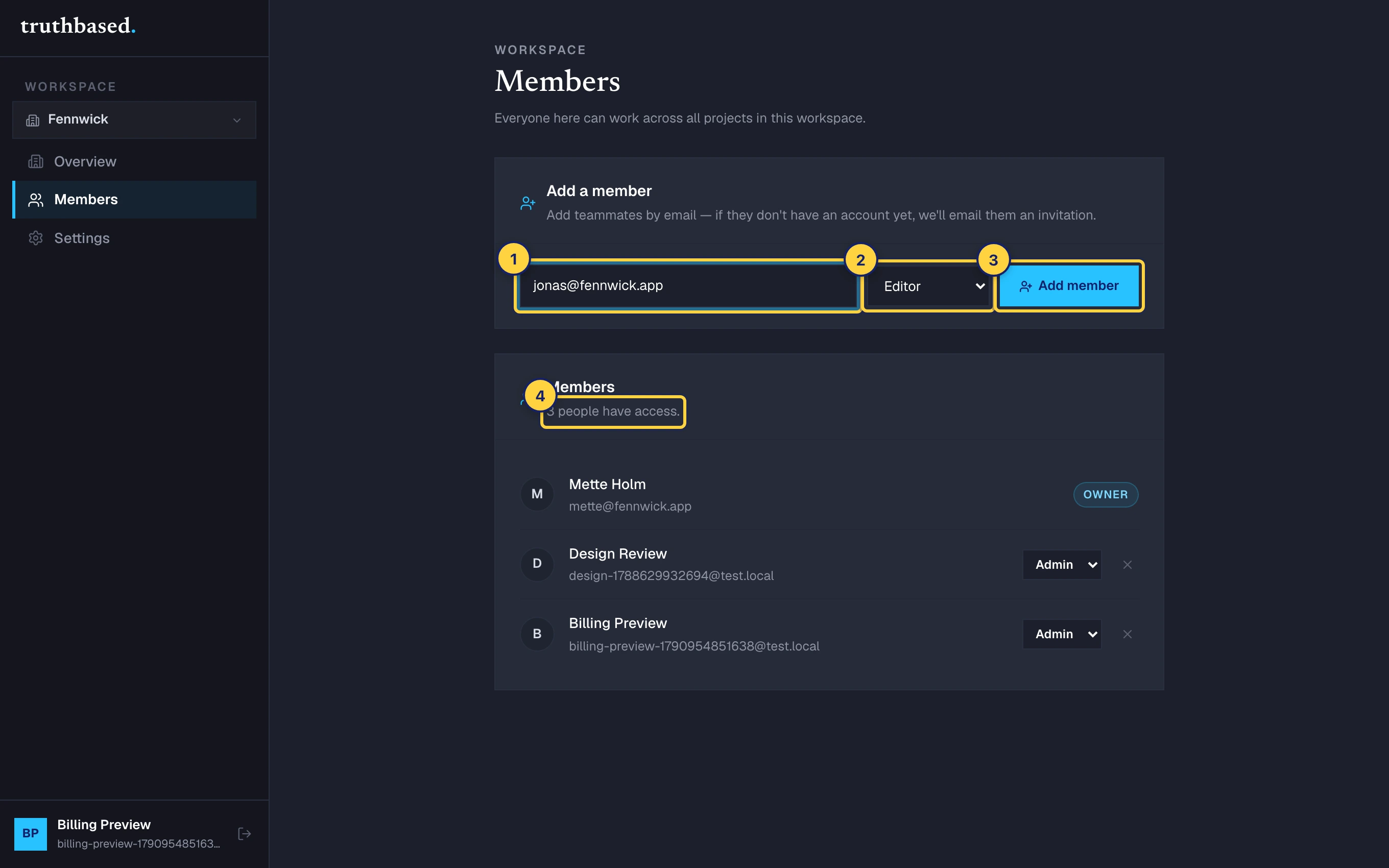
Members. ① Email. ② Role. ③ Add member. ④ Everyone who has access, with their role. -
Change a role from the dropdown in the list, or remove someone with the cross. Only the owner's role cannot be changed.
What each role can do
| Role | Can |
|---|---|
| Viewer | Read everything. Sign off nothing. |
| Editor | Work the truth layer: read pages, sign off facts, resolve contradictions, run checks, add keys for a brand. |
| Admin | Everything an editor can, plus manage members, brands and settings. |
| Owner | Everything, and only the owner can delete the workspace. The person who created it. |
Give a client Viewer if they want to see their Truth page's workings without touching it. Give your account manager Admin.
Add a brand
A workspace can hold several brands. From the workspace menu, open Overview, then Add brand, or use the brand picker's Manage brands.
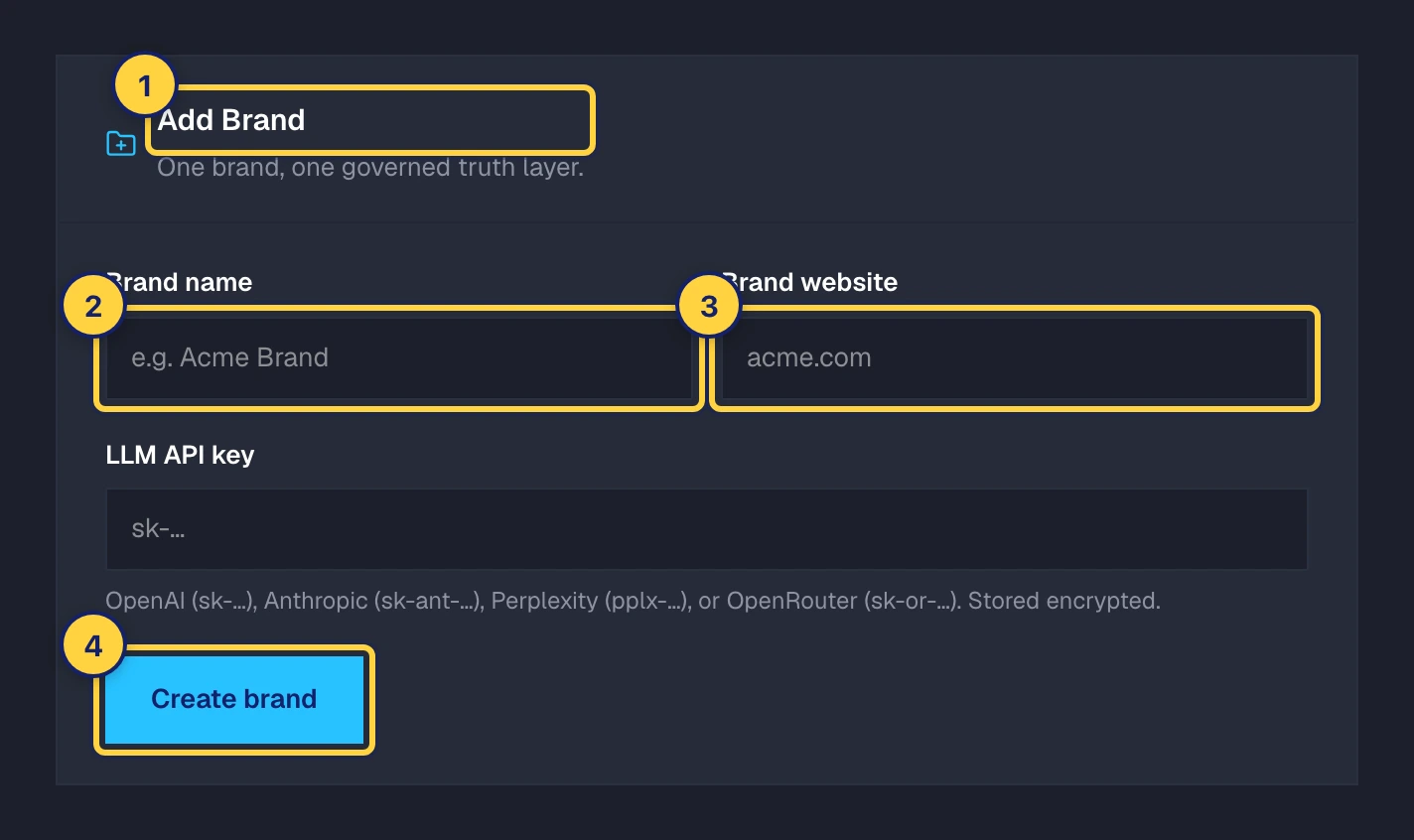
Keys follow the account by default, so a new brand reads on your key with nothing to paste. For a client who should pay for their own AI use, add a key for that brand only under its Settings. See Bring your own AI key.
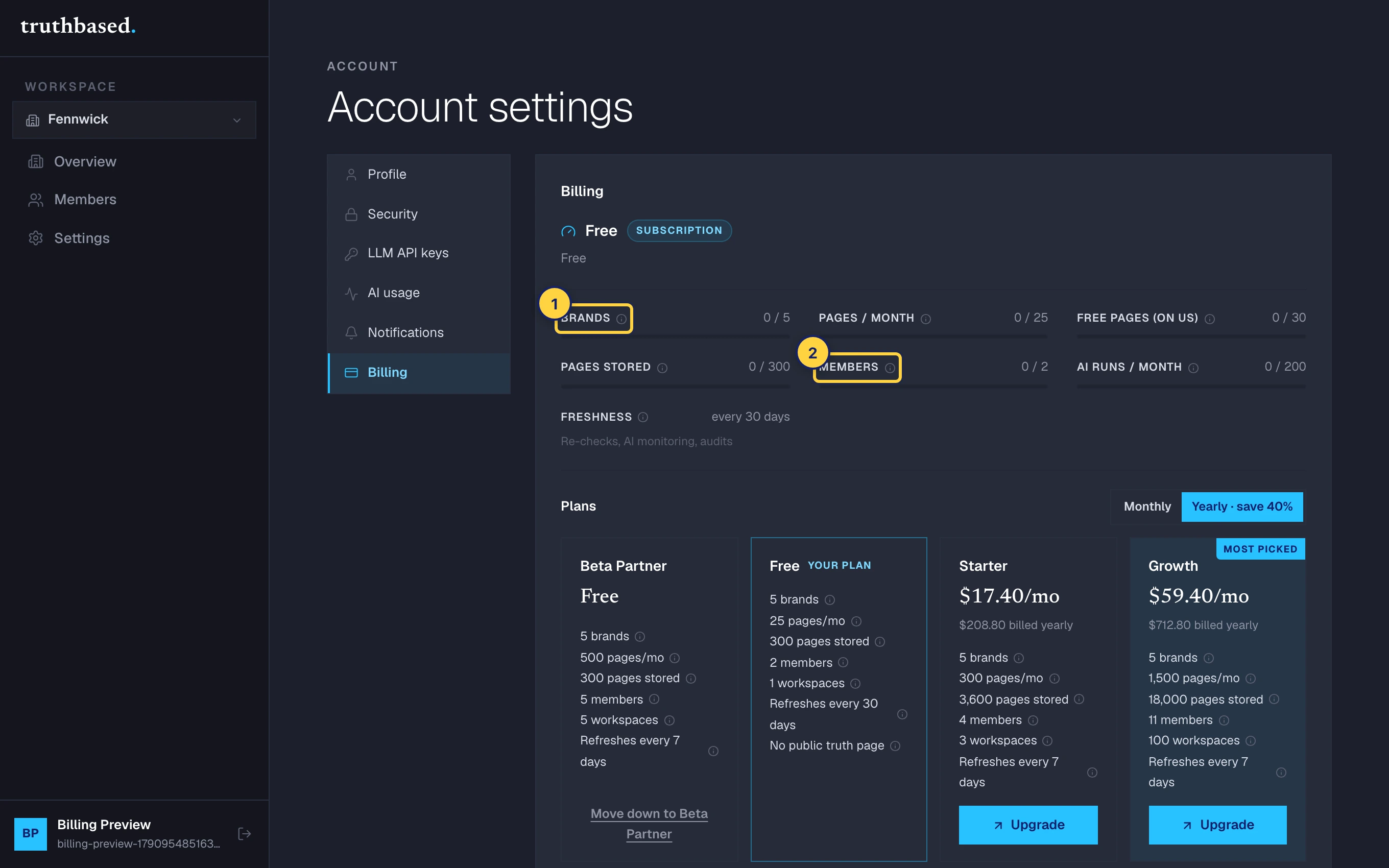
Seats, brands and limits
Plans count three things. All of them are per account, across every workspace you own.
| Plan | Brands | Seats | Workspaces |
|---|---|---|---|
| Free | 1 | 1 | 1 |
| Starter | 3 | 4 | 3 |
| Growth | 10 | 11 | 10 |
| Agency | 30 | 26 | 30 |
A seat is a person. Someone you add to three of your workspaces uses one seat, not three. When a limit is reached the add button says so, and the meters under Account, then Billing, show where you stand.
Running clients
The pattern that works:
- One workspace per client, named after the client, with that client's site as its one brand.
- Your team as editors in every client workspace. Add them once per workspace; they still count as one seat each.
- The client as a viewer, so they can watch the Truth page fill up and read the weekly check without changing anything.
- A brand key for clients who want AI use on their own bill.
- Freshness set per brand, so a client on a slow site is not re-read as often as one that changes daily. See Freshness.
The Agency plan is built for this: thirty brands, thirty workspaces, and a report a month per client. Need more? Write to sales@truthbased.ai.
What to do next
- From sign-up to your first fact for the first brand in a new client workspace.
- Prove your domain and publish your Truth page: the client's own site must carry the proof, so plan that step with them.